Select Product Subject / Article Number e.g KB244  


This article is available online at:
http://www.cybernetman.com/kb/index.cfm/fuseaction/home.viewArticles/articleId/176

Setting Up Windows XP Mode on Windows 7 Enabled Systems
 

To enable Windows XP Mode on systems with Windows 7, please follow these steps. First you will need to create a new virtual machine. From the start menu, click to browse All Programs, then hover over Windows Virtual PC. When the folder expands, click Windows Virtual PC.
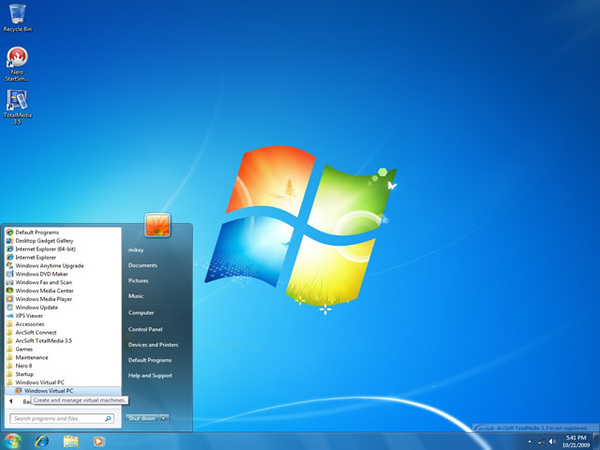
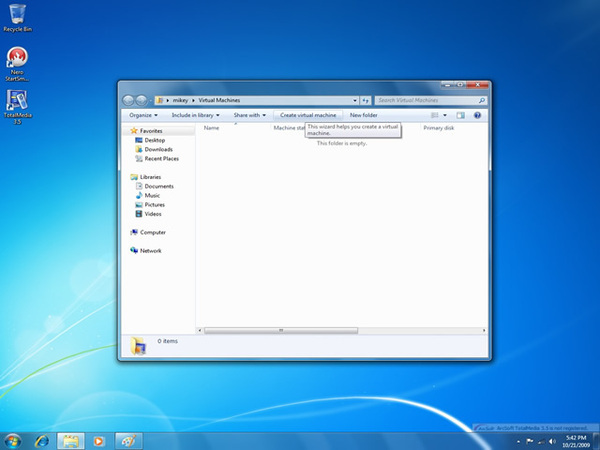
After the Windows Virtual PC window opens, click the button Create Virtual Machine. The default options should be used.
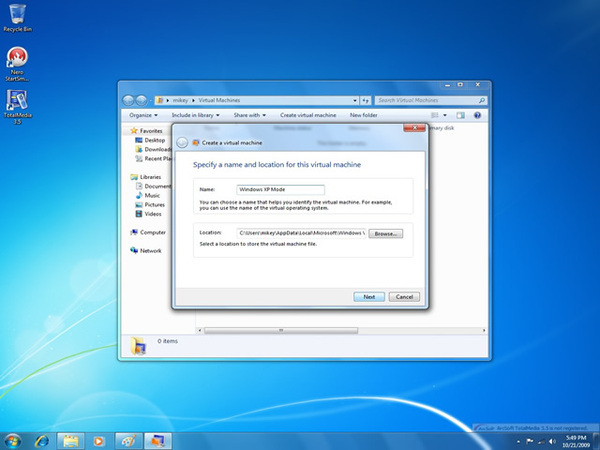
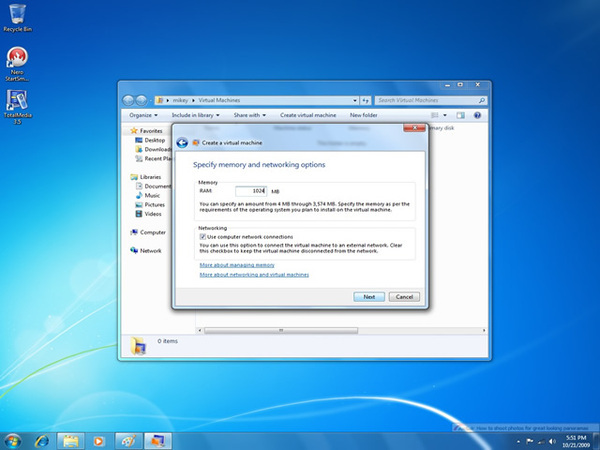
When prompted to specify memory and network settings, ensure the options chosen match the image below.
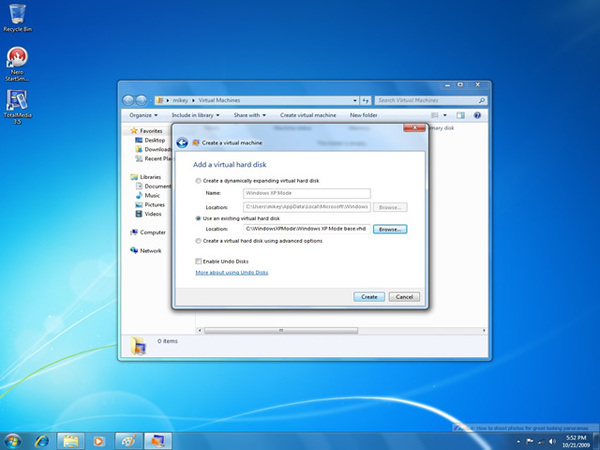
When prompted to choose Virtual Hard Disk settings, choose Use an existing virtual hard disk. The VHD will be located at C:\WindowsXPMode\Windows XP Mode base.vhd. Then press Create.
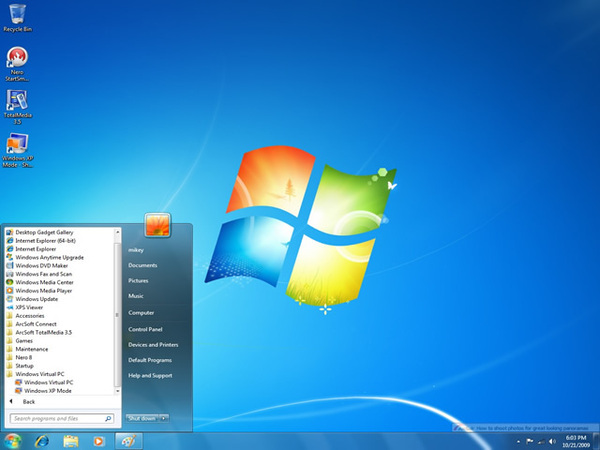
From the start menu, click to browse All Programs, then hover over Windows Virtual PC. When the folder expands, click Windows XP Mode. This will begin the setup of Windows XP Mode. Work through the prompts to complete the process.
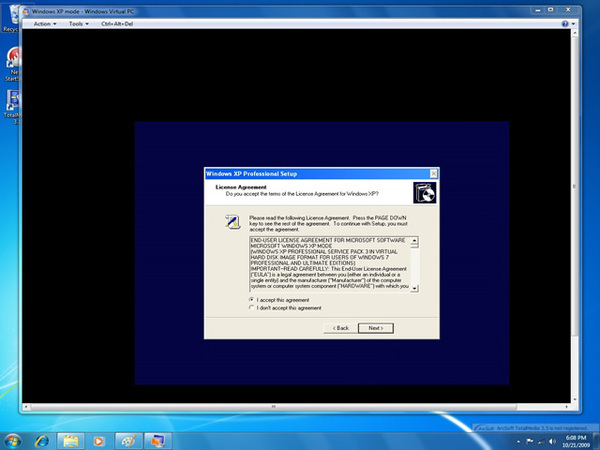
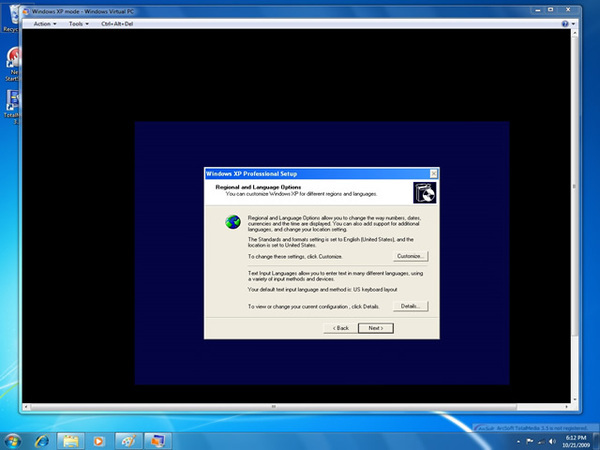
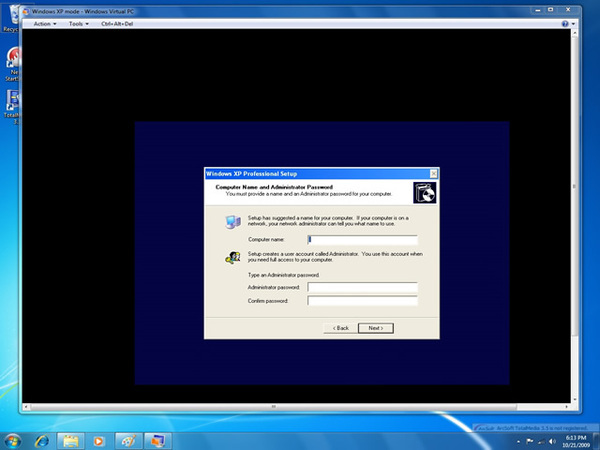
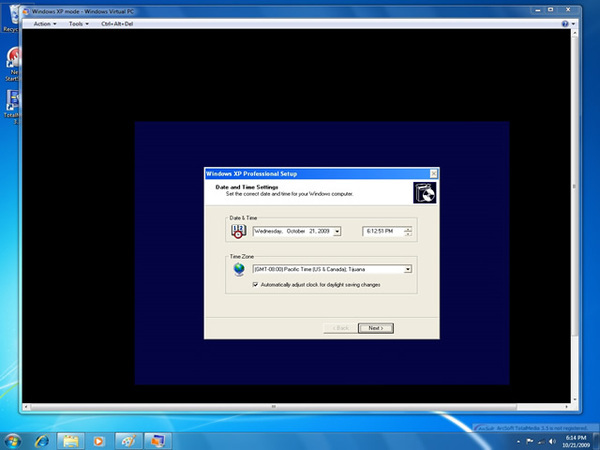
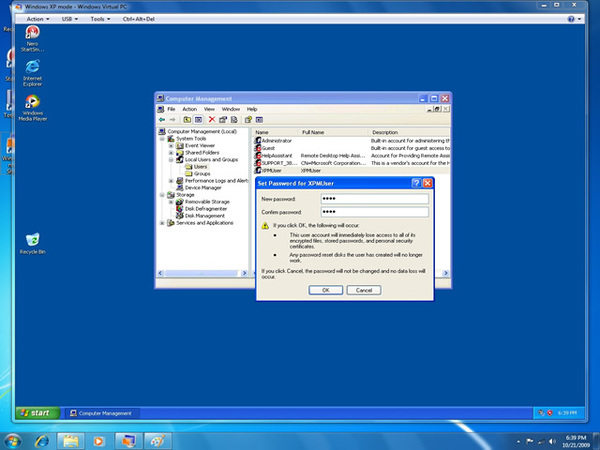
Once the setup of Windows XP Mode is completed, you will be presented with the Window below. Before installing programs on the Windows XP Virtual PC, click the Start Menu and highlight My Computer. Then Right-Click and choose Manage. When the Computer Management window appears, on the left pane expand System Tools, then Local Users and Groups, and highlight the option Users. On the right pane, highlight XPMUser and choose Properties. When the XPMUser properties window appears, uncheck the box next to Account is disabled and click OK.
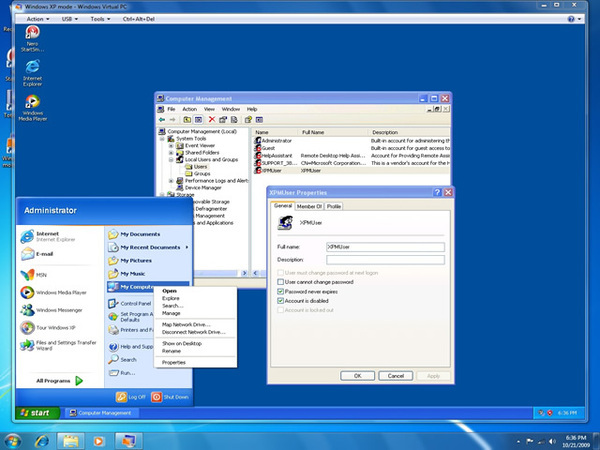
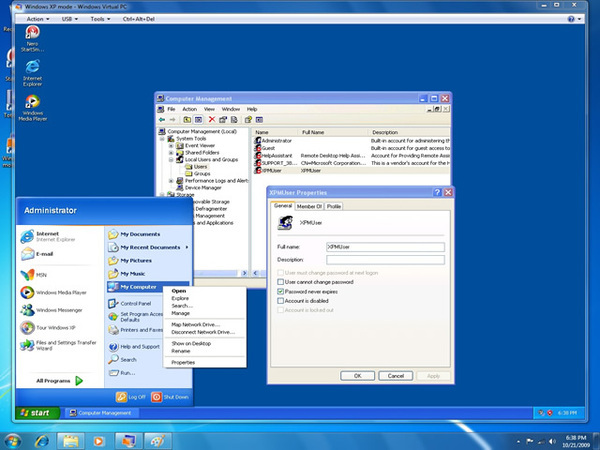
With XPMUser still highlighted, Right-Click and choose 'Set Password.' Create a password for the XPMUser account, then click 'OK'.

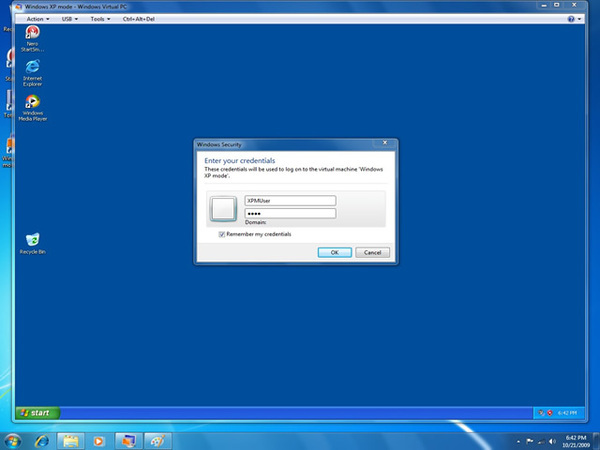
Move your cursor to the menu for the Virtual PC and click on Tools, than Enable Integration Features. You will be prompted for your user name (XPMUser) and password. Complete this information and check the box Remember Credentials. Then click OK.

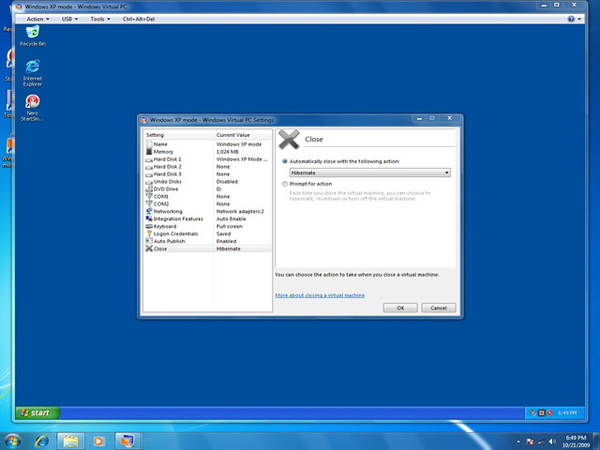
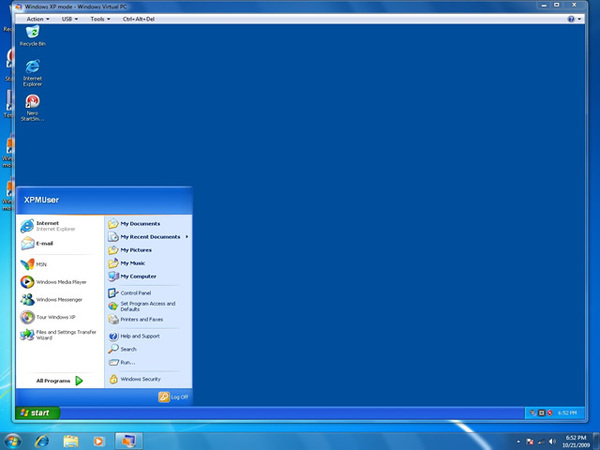
Now click on Tools again and choose Settings. Highlight the setting Close and choose to Hibernate when closing the Virtual Machine. Then press OK. Windows XP Mode may now be used as if it were an actual Windows XP PC. Be sure to install anti-virus software and the latest Windows Updates. Exit the Virtual PC at any time by choosing Log Off XPMUser in the Start Menu.
If you experience slow performance when trying to access a shared drive from the host PC within the virtual machine, download the attached hotfix and run it within your Windows XP Virtual Machine. WindowsXP-KB972435-x86-ENU improves slow performance when trying to open a redirected drive on a remote computer that is running Windows XP through a Terminal Services session; more information can be found here.


Related Articles
 

Would you like to?

Attachments

User who found this useful:
46%   54%
Click a thumb to Vote


  Cybernet Resource Center
  About Cybernet   Services & Support   Success Stories   All-in-One PC   Medical Computer   Medical Carts & Mounts


Pricing, specifications, availability and terms of offers may change without notice, are not transferable and are valid only for new purchases from Cybernet for delivery in the 50 United States. Taxes, fees, and shipping and handling charges are extra, vary and are not subject to discount. Cybernet cannot be responsible for pricing or other errors, omissions, or consequences of misuse of this website and its functions, and reserves the right to cancel orders arising from such errors. Discounts cannot be retroactively applied. Orders are subject to cancellation by Cybernet.  Unless you have a separate agreement with Cybernet, all sales are subject to Cybernet's Terms and Conditions of Sale.

Looking for space saving all in one PCs, all in one medical computers, hospital computers, or all in one desktop computers that can reduce clutter and free up your workspace? Cybernet Manufacturing, Inc. is the right place to find what you need. Cybernet is the industry pioneer in all in one PCs, all in one medical computers, touch screen PCs, keyboard computers, fanless all in one PCs, and IP65 industrial PCs. Since 1996, we have been developing and manufacturing reliable, high-performance all-in-one computer solutions that can be customized to fit any enterprise environment. We serve a wide range of industries, including banking, health care, education, government and POS systems for retail. Cybernet’s product lines include several all-in-one computer designs that fit in compact packages. Our iOne-GX45 is an all in one, customizable LCD PC that has the computing power of a desktop PC packaged in an LCD monitor. Similarly, the iOne-H5 and iOne-G4 are powerful touch screen PCs with a widescreen display. The ZPC-GX31 is a computer housed in a keyboard, with a “zero footprint” on your desktop. There are two medical grade touch screen PCs ideal for use in a hospital or clinic, including a medical all in one computer (the iOne-MP171) and a fanless all in one medical computer (the iOne-MP172) that both have an antimicrobial coating for sterile medical environments. The iOne-MP172 can also be used as a fanless industrial PC. All of our all in one computer products are customizable to fit your specific environment, and our account reps work with you one on one to determine the right configuration to meet your specifications and your budget. The ease of deployment and installation for our all-in-one PCs will lower your overall ownership cost.
 
Cybernet also offers a full range of computer accessories to complement and maximize the use of your all-in-one PC. From hard drives to medical carts and mounting arm solutions, we have everything needed to maximize your all in one computer.
 
Cybernet builds in exceptional reliability and quality to all of its products, but also delivers personalized support from day one. With a U.S.-based tech support team, we are standing by to help you get the most of your all-in-one computers. Should the need arise to have the all in one PC sent in for repairs, we also guarantee fast turn-around times to minimize downtime and keep your operations up and running.  When an all-in-one PC is returned to Cybernet for warranty service, it is subjected to the same thorough testing as a new all-in-one PC.  At Cybernet, our primary focus is on customer satisfaction.
Copyright 2001 - 2012 Cybernet Manufacturing, Inc. All Rights Reserved.