Virtually anyone who’s worked in front of a computer daily knows about computer ergonomics and its effects on one’s well-being. Those who don’t or, worse, assume it won’t happen to them usually get a rude awakening as they suffer neck pain, blurry vision, and a persistent aching back, to name a few issues. Many ergonomic techniques have been developed to prevent or minimize these issues, including design decisions made by computer manufacturers.
What Is Computer Ergonomics and Why It Matters
Ergonomics is the study of people and how they can interact safely and effectively in various settings, such as the workplace. Example: proper posture while sitting in a chair.
Computer ergonomics adapts the computer, accessories like keyboard and mouse, and the entire workstation to maximize the user’s comfort and reduce risks of injury. Using a computer involves a lot of repetitive motions, from moving the mouse to typing on a keyboard. People also stare at a monitor for long periods, especially while working. All these and more can cause eye strain, back and neck pain, headaches, and shoulder and arm pain. Computer ergonomics aims to reduce these strains and pains.
Four Key Adaptations of Computer Ergonomics
Much of the adaptations from computer ergonomics involve the placement of the equipment relative to the user and how that equipment is used. All aim to ease stress to the body and prevent possible injury. The following four adaptations are the most commonly used in most workplaces.
Monitor Position
Wrongly placed computer monitors can cause neck and eye strain to users. To prevent this, the monitors should be:
- The top of the screen should be at, or slightly below, the user’s eye level.
- The monitor should be roughly an arm’s length away, or 20 to 40 inches.
- The screen should be angled so there’s no glare from nearby windows or overhead lighting. An anti-glare screen can also be used to disperse or prevent such excessive lighting from being reflected back.
Sitting Posture
Slouching while sitting to just sitting in a bad chair can strain a user’s body and cause a slew of muscular and skeletal problems. Good sitting posture involves:
- The user’s back should be pressed against the chair for maximum support. Lumbar pillows and similar supports can be used to maintain the natural S-curve of the lower spine.
- Thighs should be parallel to the floor with feet flat on the floor.
- The user’s elbows are close to the body and angled similarly to their thighs. Hands should be at elbow level or slightly below. Chair armrests are excellent at providing this posture and should be adjusted accordingly.
Keyboard and Mouse Position
Wrist pain and carpal tunnel syndrome are all-too common results of bad ergonomics: in this case, bad wrist placement. The solutions include:
- Standard keyboard and mouse should be set up at a level with the user’s elbow and close enough so the user is not straining to reach either input device.
- When using both, the user should keep their wrists as straight as possible. They shouldn’t be bending them up, down, or to the sides constantly.
- Users who have difficulty keeping their wrists in the correct position(s) should consider more ergonomic input devices, such as splayed keyboards, trackballs, and vertical mice.
Keep on Moving
The human body is evolved for moving. So, no matter how ergonomic the chair and desk setup, users should regularly step away for both their physical and emotional health.
- To protect against vision issues, follow the 20-20-20 rule: every 20 minutes, look at an object 20 feet away for 20 seconds.
- Take a 10-second “micro break” every 10 - 15 minutes to stretch one’s arms and legs, shift in the chair, or adjust one’s sitting position. Basically, do anything to get blood flowing and muscles stretched.
- A brief “walkabout” every hour. Simply, movement to break the typical prolonged sitting at the desk. Examples include walking to the break room to get water, walking around the office to greet colleagues, and taking a call while standing.
How Computers Are Being Designed to Be More Ergonomic
Placement of the computer equipment relative to the user, and how it’s used, are the most well-known aspects of computer ergonomics. Another aspect is the very design of those pieces of equipment. While some are obvious, such as the splayed layout of the ergonomic keyboards and mice substitutes like trackballs, there are other design changes too subtle to notice. However, their changes will be felt, especially for users using the same machine shift after shift, hour after hour.
Rechargeable batteries: Computers and medical monitors with hot-swap battery capability can replace spent batteries without turning off the equipment. The batteries are designed to be lighter and have solid, easy-to-grip handles, making them a breeze to carry and use throughout one’s workday.
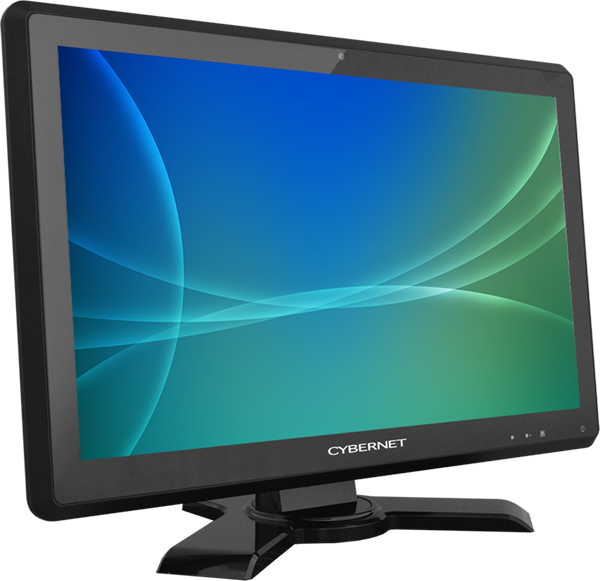
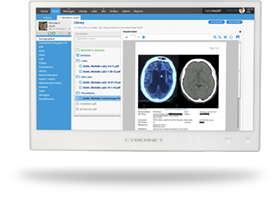
User-friendly screen: Original Equipment and Design manufacturers work closely with their clients and can ensure their products follow their users' actual workflow and knowledge. All-in-one (AIO) computers can be designed to have an RFID reader on the AIO's front and lower left side. That way, users don't have to switch their RFID fob from their right hand to their left to log in. A design choice like placing indicator lights at the bottom right of the AIO is similar to the power indicator of the Windows OS, which most users are familiar with and won't waste time looking for.
Friendly accessories: The slots of the above battery charger can be angled to make inserting spent batteries easier. Attachable cameras can tilt so users don't strain themselves adjusting their bodies during video meetings, while removable or built-in anti-glare screens protect those same users from eye strain.
There are even more subtle, computer ergonomic designs, all of which aim to aid the user’s comfort and prevent injury.
- A curved back of the AIO or monitor to make gripping them easier during medical device cleaning, a vital task to protect both patient and medical staff.
- VESA mounts are placed higher on the back of the equipment for better weight distribution.
- Thinner bezels are designed on a 24-inch medical-grade monitor or AIO to allow passage through doorways without turning the equipment.
Computer Ergonomics Already Built In by Cybernet Manufacturing
Ergonomics aims to make people more efficient in settings like the workplace, and computer ergonomics brings that efficiency to computer use. While computer ergonomics usually revolves around the user's posture and position, it also involves the PC's design, such as battery handling and accessories.
Are you looking to bring ergonomics to your computer users? Contact Cybernet Manufacturing! Team members will happily cover how our all-in-one PCs and their good ergonomic design can make your organization healthier, satisfied, and efficient.